
Changelog
Design decisions, feature announcements, and the thinking behind Drop. Every shipped PR gets at least a one-line entry; decisions worth the full post get one.
Drop Has a Directory Now
Everyone at Hi Marley, every Space, and every User Group in one place. Stop pasting email lists when you share Droplets — bundle people into a Group once and share with the Group.
Drop has a Directory now. Open it from the left sidebar — it has three tabs:
- People — every
@himarley.comuser with name, title, and email. - Spaces — every Space at a glance, with member counts and owner.
- User Groups — named collections of people you can grant Droplet access to in one shot.
That last tab is the one that changes how sharing works day-to-day. If you want to share a strategy doc with engineering, you no longer paste 24 emails into the access panel. You add @engineering and you're done. Membership in the group resolves on the CDN side, so adding someone to the group later gives them access without you re-saving anything.
A few concrete things you can do now
- Stop email-pasting. Share a Droplet with
@slt,@product, or@design-partners. One token, one grant. The group's membership is the source of truth. - Browse the company in one tab. "Who's the new PM on the integrations team?" is a Directory search, not a Slack scroll.
- Bootstrap a Space from a Group. If a group hardens into something more permanent — recurring meetings, shared docs, channel-bound work — promote it to a Space with one click. The Space inherits the group's roster.
Admin management moved here too
This part is mostly invisible to people who use Drop day-to-day. For the small set of folks who administer Drop — managing who can curate the Directory, who can manage the shared library, who has elevated privileges — those roles now live in the Directory as well.
Two roles ship in this release:
@drop-people-admins— curates the Directory itself (creates User Groups, edits descriptions, manages memberships).@drop-library-admins— curates the shared library (brand assets, examples, skill catalog).
Both Groups live in a pinned System Roles section at the top of the User Groups tab, visible only to admins. Promoting someone is now just adding them to the Group via the same member picker you'd use for any other group. Demoting is removing them. There's no special promote-someone-to-admin page hidden behind /settings/admin anymore.
If you don't administer Drop, you won't see this section. The previous per-user admin checkboxes are gone — the people who manage roles already know where to find them.
Directory shipped in PR #442. System Roles ships as feat/033-directory-roles (Issue #443). Specs at features/032-directory/spec.md and features/033-directory-roles/spec.md.
Your Stats: A Footprint of Your Time on Drop
A new personal stats page in the avatar menu — droplets shipped, views received, interactions earned, comments received, plus a 365-day activity heatmap of what you've been making.
Open the avatar menu in the top right of Drop and you'll see a new entry: Your stats.
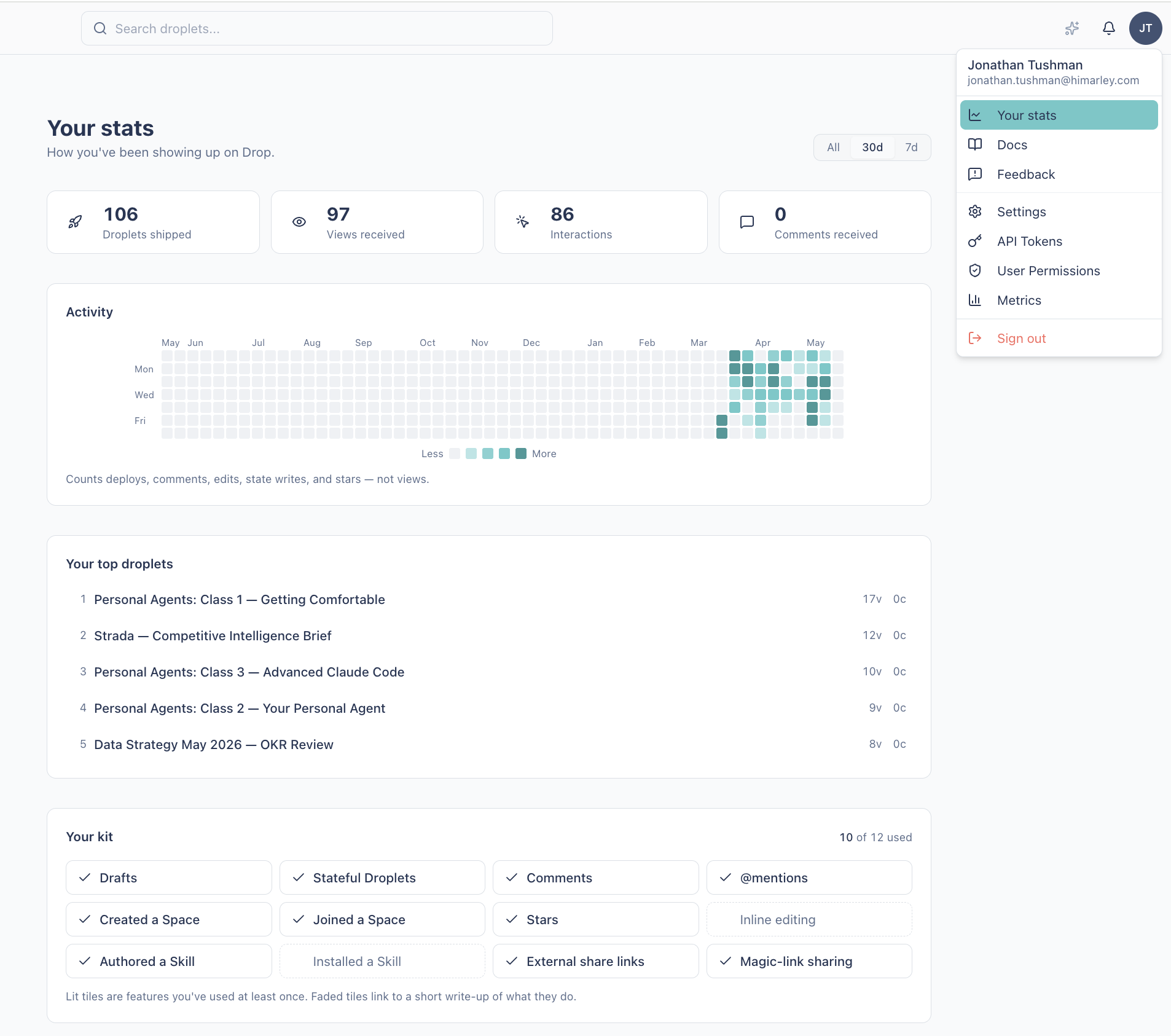
A summary of how you're showing up on the platform:
- Droplets shipped — every Droplet you've published
- Views received — how many times other people have looked at your work
- Interactions — how often someone did something in your stateful Droplets (voted in your poll, ticked your checkbox, answered your survey)
- Comments received — engagement on your droplets
Below those, a 365-day activity heatmap of your authoring moments — deploys, comments, edits, state writes, stars. And a short list of your top droplets by reach.
The metric I think is most interesting is Interactions. Views tell you who showed up. Interactions tell you who actually used what you built. If you've shipped a stateful Droplet — a poll, a checklist, a survey — the gap between those two numbers is the answer to "did this land?"
Your kit
At the bottom of the page is a small Your kit panel — one tile per capability we ship. Tiles you've used render solid; tiles you haven't render faded. Click a faded tile to see a short page on what the feature does and how to try it.

The kit is lifetime, not "last 90 days." Once you've used something, it stays lit. It's an inventory of what's in your toolbox — not a homework list.
Have a look at your own footprint. Avatar menu → Your stats.
Skills: Ship a Workflow, Install Someone Else's
Skills are sharable Claude Code workflows hosted on Drop. Publish one with `drop skill ship`, install one with `drop skill install <slug>`. The best way to spread a recipe across the team.
If you've found yourself doing the same thing with Claude Code more than twice — kicking off a meeting recap, summarizing a Slack thread, drafting a recommendation — that's a Skill waiting to happen.
What a Skill is
A SKILL.md file (markdown with a frontmatter block describing the trigger) that Drop hosts as a first-class artifact. Skills live in /dashboard?type=skill and are searchable like any other Droplet.
The difference vs a Droplet: Skills are designed to be installed into your Claude Code setup with one command, where they become available as a slash command or invocable workflow.
Publish a Skill
From the CLI:
drop skill create        # scaffolds a SKILL.md
# edit the frontmatter + body
drop skill ship          # publishes to Drop
That's it. The Skill is now visible to anyone with Drop access.
Install a Skill
drop skill install <slug>
The skill lands in your local ~/.claude/skills/ directory. Restart Claude Code or invoke it directly.
When this pays off
- You've taught one teammate how to do a workflow with Claude — ship it as a Skill so the next teammate doesn't ask.
- You're trying out a recipe and want to iterate without re-pasting markdown into a doc.
- You want a canonical version of "how this team uses Claude for X" — Skills are the substrate.
Browse the Skills library at /dashboard?type=skill and have a look at what's already there.
Inline Editing Grew Up: Autosave and Real List Mechanics
Two upgrades to the Droplet inline editor: edits now save themselves on a quiet debounce (and collapse a fix-up session into one version row), and you can edit list items with the keyboard mechanics you'd expect from Notion or Google Docs.
What's new
Two changes to how you edit Droplets, designed to land together:
-
Edits save themselves. Toggle into edit mode and start fixing typos. After ~1.5 seconds of idle time, the change auto-saves. No "Save as new version" button to click, no anxiety about closing the tab. A small status indicator at the bottom tells you whether your work is "Unsaved," "Saving…," or "Saved."
-
Lists work the way you'd expect. Double-click any item in a
<ul>or<ol>and use the keyboard mechanics from any modern editor:- Enter splits the current item and starts a new sibling
- Backspace at the start of an empty item removes it (outdents if nested)
- Tab indents the item one level (creating a nested list of the matching kind)
- Shift-Tab outdents one level
Both pieces are layered on the same primitive that's been in production for months — server-side string replacement on the live HTML. The work was almost entirely about what the client sends to the server, not about changing the deploy pipeline.
Why this needed doing
The inline editor as it shipped a couple of months ago had two rough edges that compounded each other.
Manual save pressure. Auto-logout had been quietly eating people's in-flight work, so editors developed defensive habits — every typo got an explicit "Save as new version" click. A thirty-second pass to fix three typos produced three rows in the version history, each labeled "Text edit: 1 change." The history panel filled up with semantically meaningless entries, and rollback granularity ended up at "mid-session" rather than "before the session started," which is rarely what people actually wanted.
Lists were a workaround zone. The original inline editor scoped edits to single text elements: double-click a heading, change the text, save. That model works for in-place text changes but doesn't extend to list mechanics. Pressing Enter inside an <li> produced a <br> or a <div> depending on the browser, not a new sibling item. Tab moved focus out of the editor. Removing an item required hitting the source HTML. Lists are everywhere in internal Droplets — rollups, JDs, checklists, dashboards — so this was the friction people hit most often.
Both of these were quality issues with a working feature, not blockers. But together they made inline editing feel like a 1.0.
How autosave fits with squashing
The autosave change has two halves that need to work together.
On the client, the editor debounces edits. A 1.5-second pause after the last keystroke triggers a save in the background. The status bar shows "Unsaved" while edits are queued, "Saving…" during the request, and "Saved" briefly when it lands. If the network blips, the bar surfaces a Retry. If the session expired, pending edits are stashed to session storage and restored after sign-in.
On the server, a coalesce gate decides whether each text-edit produces a new DropletVersion row or overwrites the most recent one in place. The gate has three signals, all of which must be present:
- Same author — the previous version was deployed by the current user
- Recent — the previous version's timestamp is inside a 15-minute idle window
- Same edit kind — the previous version's notes begin with the literal prefix
Text edit:
When all three are present, the squash path runs: same DropletVersion row, updated S3 content, updated searchText, updated count in the notes line ("Text edit: 5 changes"). The version number stays put. Comments and other version-pinned references continue to resolve, because the row they pin to still exists with the same identity.
The 15-minute window is an idle window, not a hard cap. Each save resets it, so a long afternoon of fiddling on the same Droplet produces one row, not several. The window is also one signal of three — the same-author and same-edit-kind gates prevent unrelated work from getting silently bundled even within a long window. A drop deploy from another path breaks the chain cleanly because its notes don't carry the Text edit: prefix.
What we explicitly didn't ship: a "What changed?" reason input on the autosave bar. Staging UX testing showed that an always-visible input created a race-to-type pressure — users felt they had to annotate before the "Saved" indicator faded. The server-side aggregation logic is there for when the right surface arrives (annotate-from-history, AI summaries, CLI/MCP callers passing notes); the live UI just doesn't have a place to type one in.
The list-editing scope decision
The inline editor's persistence model is server-side string replacement: the client sends oldText → newText (or oldHtml → newHtml for richer changes), the server finds the substring in the live HTML and rewrites it. No DOM parsing on the server, no diff format, no version-of-record beyond the HTML itself.
List edits broke that model in an interesting way. Text fixes inside an <li> are fine — oldText → newText anchors at a stable element. But pressing Enter creates a new <li> that doesn't exist in the original HTML. There's no oldText to anchor against because the new item is, by definition, not in the source. Indent, outdent, and removal have the same shape: they change structure, not just text inside an existing structural slot.
Three options sat on the table.
Per-item server operations like liInsert(parentSelector, index), liRemove(selector), liIndent(selector), liOutdent(selector). Clean semantics, precise conflict model — two editors changing different items in the same list could compose without colliding. The cost is a new wire contract, a new server-side applier with its own bugs, and a schema the bridge has to keep producing correctly. For a v1 where the worst-case collision is "two people edited the same list within a 15-minute squash window," it felt like overbuilding.
Defer to AI editing. The other extreme: don't support structural editing inline at all. Use the AI path for any list reshaping. Coherent if you're only ever doing big rewrites, but the whole point of inline editing is the small fix — adding one bullet, removing one stale row. Sending those through a model is slow and overkill.
Scope the edit at the enclosing list. What we picked. When the user double-clicks inside an <li>, the contenteditable surface becomes the enclosing <ul> or <ol> instead of the item. All structural mutations happen inside that scope, and on save the bridge emits one diff against the list element. The server applies it as a single set_content (selector path) or substring replacement (fallback path). No new endpoint, no new validation path, no new tests for op application.
// What the bridge sends after a list editing session
{
  selector: 'body > ul:nth-child(3)',
  oldHtml: '<li>First</li><li>Second</li>',
  newHtml: '<li>First</li><li>Second<ul><li>Nested</li></ul></li><li>Third</li>',
  oldText: '...',  // plain-text snapshot, diagnostic only
  newText: '...',
}
The trade-off is conflict granularity. If two people edit different items in the same list inside the same window, the second save sees a stale oldHtml and the change collides at the list level rather than the item level. For internal Droplets where simultaneous edits on the same list are rare, this is an acceptable v1 cost. The escape hatch is available: per-item ops can be added later without changing the route, because the new op shape would be additive.
A few small UX choices worth flagging
A couple of behaviors are deliberate, not oversights, and worth knowing about:
- Toggling out of edit mode discards unsaved edits. The edit toggle doubles as the cancel affordance. Auto-saving on toggle would silently commit work the user might have meant to throw away. The EditBar shows "Unsaved changes" while a save is queued, so the signal is there.
- You can't delete the last item in a list with Backspace. Removing the final
<li>would leave an empty<ul>or<ol>and raise the question of what to type into the void. That conversation leads to "Drop becomes a rich-text editor," which is a different product. The AI editing path handles "remove this whole list" cleanly; inline editing stays surgical. - Edits save on focus loss, not on every keystroke. The 1.5-second debounce runs after the contenteditable element blurs (you click outside the editing region). For paragraph fixes this is invisible. For multi-step list sessions, it's the upgrade path we're tracking next — see below.
What's next
- Save while typing. The current autosave fires when the contenteditable element loses focus. For multi-step list sessions, that feels lossier than Notion's keystroke-debounced model. A follow-up will have the bridge emit changes from
inputevents with an in-iframe debounce, so the autosave timer at the parent level can run while you're still in the list. - Secondary list affordances. The issue that drove this work (#341) named a richer set of inline list capabilities — bullet ↔ numbered toggle, margin-gutter insert/remove, inline link popovers, image alt-text. Each one expands the UX surface in ways that warrant their own co-design pass.
- Per-item OCC. Re-evaluate if real-world collisions on internal Droplets justify finer-grained list ops. The route stays the same; the bridge just learns a new op shape.
Shipped in PR #350. The autosave foundation shipped in PR #348. Feature specs: features/inline-text-editing/spec.md and features/022-text-edit-squash/spec.md.
Sharing Outside @himarley: Links and Magic Links
Share a Droplet with a customer, partner, or anyone outside Hi Marley via a tokenized URL. Email-gated, expiry-windowed, passwordless via magic links. Audit-friendly view tracking included.
Drop's default access is internal — every Droplet is gated behind Hi Marley SSO. But occasionally you need to send something out: a recap to a customer, a preview to a partner, a presentation to someone who can't SSO in.
That's what external share links are for.
Creating a share link
On any Droplet you own, open the access panel and pick the "External sharing" tab. Create a link with the options that fit:
- Email allow-list — only specific email addresses can verify and view
- Magic-link gating — recipient enters their email, clicks a one-time verification link, gets a 7-day session cookie. Passwordless and audit-friendly.
- Optional password — if you want a shared secret instead of (or in addition to) magic-link verification
- Expiry — auto-disable after N days
The Droplet stays gated by Hi Marley SSO for internal viewers; the external link is a parallel path for outsiders.
Magic links vs passwords
Magic links are almost always the right choice:
- No shared secret to leak. Each recipient verifies their own email — there's no password to forward by accident.
- Audit trail. Drop records who clicked through, when, and from what IP. The owner can see this on the share-link details page.
- Time-bounded. Sessions auto-expire after 7 days; recipients re-verify if they come back later.
Passwords are still available for the edge case where the recipient can't receive an email reliably, or where you want a single secret you can rotate. But default to magic links.
Opt-in per user
External sharing is off by default per user — it's a small extra capability flag that an admin grants. If you don't see the "External sharing" tab on a Droplet you own, ping in #internal-ai-tools to get canExternalShare enabled on your account.
When this pays off
- Sharing a meeting recap with a customer who needs to verify but shouldn't have full Drop access
- Time-limited preview links for a partner reviewing work in progress
- Per-person access (allow-list specific emails) when you need to be precise about who sees what
Once the link is live, the share-link details page shows the audit trail: who verified, when, and how often they came back.
Comments: Conversation in Context
Every Droplet has a sidebar for threaded comments. Type @ to loop in a teammate — they get notified instantly. Best for async review and decision-capture next to the work itself.
Open any Droplet at /view/{slug} and there's a comments sidebar in the Drop Bar. It's been there a while — and if you haven't used it, it's a pretty good way to keep async feedback next to the thing it's about.
What it does
- Threaded conversation anchored to the Droplet (and, soon, to specific elements within it).
- Resolve a thread when the discussion is done, so the sidebar stays useful.
- @mention a teammate by typing
@and picking from the suggestion popover. They get an in-app notification and an email if they have email notifications enabled.
When it pays off
- Async review of a deployed Droplet — "does this look right?" without spinning up a meeting.
- Decision capture next to the artifact the decision is about. Six months from now, the context is still there.
- Looping someone in without leaving Drop.
@Jonathan does this match what you discussed with Akshay?— they get the ping, they jump in, the thread keeps shape.
How to start
Open one of your Droplets, click the comments icon in the Drop Bar, and try @-mentioning the person who'd find the work useful. The bar will tell you they were notified.
I'm Seeing Stars
Personal stars on every Droplet — pin the ones you live in, find them with one click from anywhere.
What's new
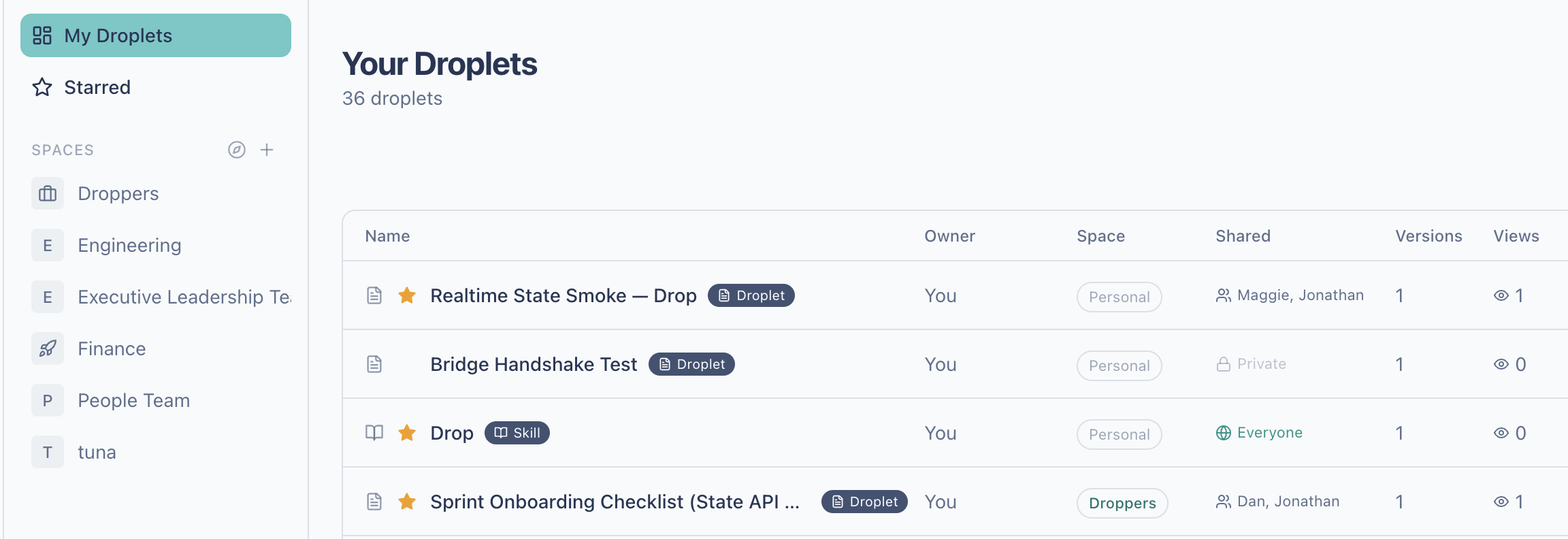
Every Droplet now has a star.
Click it on the dashboard, on a search result, inside a Space, or in the command palette — the star fills in amber and that Droplet becomes one of yours. A new Starred entry in the sidebar lists everything you've starred, most-recently-starred first.
It's a personal pin. Your stars don't affect what anyone else sees, and nobody else's stars affect what you see.
Where the star shows up
- Inline on every Droplet row — dashboard, search results, Space views, command palette,
drop listin the CLI. /starredview in the sidebar, sibling to My Droplets and Spaces. Lists everything you've starred, most-recently-first.- A new
is:starredsearch operator, so you can filter your stars from the search box:is:starred dashboardreturns starred Droplets matching "dashboard." - In your search ranking: a small
+0.10per-caller boost so starred Droplets win ties and lift moderate fuzzy matches. The boost is per-caller, so your stars never bend anyone else's ranking. - In the CLI:
drop star <slug>,drop unstar <slug>,drop list --starred. Defaultdrop listputs a ★ on starred rows. - In MCP:
drop_star,drop_unstar, and astarred: truefilter ondrop_listfor Claude Code.
Why it lives in the sidebar
The first version of this feature put a "Starred" strip at the top of the dashboard. That works for two or three stars. It gets awkward at five — every starred row appears twice on the page, once in the strip and once in its normal tab. And it doesn't scale: at twenty stars, the strip becomes the dashboard.
A dedicated /starred view sidesteps both problems. Stars get a top-level home in the navigation, the dashboard stays clean, and the list grows naturally as you add more.
We treated Starred as a personal view rather than a Space because Spaces carry sharing semantics — owners, members, "can I share this view with the team." Stars are personal-only. Overloading the Space concept with a personal-only mode would erode what Spaces mean for everything else.
Personal Stars shipped in PR #325. The feature spec is at features/020-stars-favorites/spec.md.
Droplets That Remember Things
Your Droplets can now persist state — checkboxes that survive a refresh, polls with live counts, surveys with CSV export.
What's new
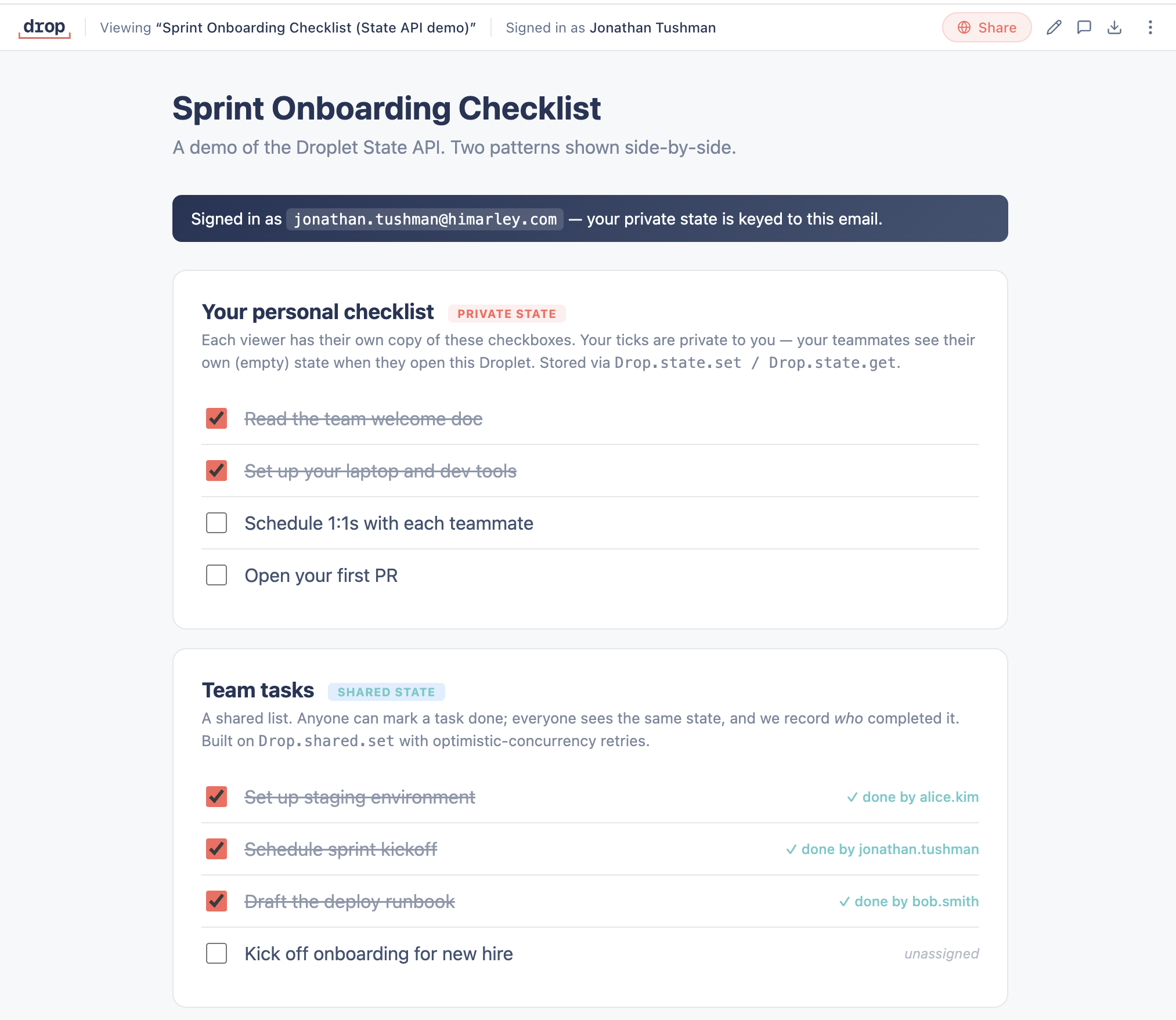
Droplets can remember things now.
Until today, every Droplet was static HTML. A checkbox you ticked on a runbook would forget itself the moment you closed the tab. A poll embedded in a planning doc had no way to count votes across viewers. A "rate this 1-5" widget at the bottom of a meeting summary couldn't actually save your rating anywhere.
Today every Droplet auto-loads a small Drop SDK that gives you five primitives:
// Per-viewer state — only you see your value
await Drop.state.set('action-3', true)
await Drop.state.get('action-3')   // → true for you, null for everyone else

// Shared state — everyone sees the same value
await Drop.shared.set('chosen-date', '2026-06-12')
await Drop.shared.get('chosen-date')

// Polls — one vote per viewer, aggregated counts visible to all
await Drop.poll.vote('offsite', 'option-a')
await Drop.poll.results('offsite')   // → { counts: {a: 7, b: 12}, myVote: 'a', totalVotes: 19 }

// Surveys — structured submissions, owner-visible with CSV export
await Drop.survey.submit('onboarding', { rating: 4, notes: 'good' })

// Access list — who has read access to this Droplet
await Drop.access.list()           // → [{ email, name }, ...]
You don't have to import anything, install anything, or write a backend. The SDK is injected into your Droplet's HTML at deploy time. Drag-drop a file with Drop.state.set('foo', true) in it and the next viewer who ticks a checkbox sees their state survive a refresh.
Update — 2026-05-09.
Drop.shared.onChangeandDrop.state.onChangenow receive live updates within milliseconds for active internal viewers, with automatic polling fallback when the realtime channel is unavailable. The author API didn't change — Droplets already using these handlers picked up the speedup the moment the platform shipped it. The "what's the latency" answer below has been updated accordingly.
What you can build with this
The interesting question is what falls out of two simple primitives.
Personal checklists that remember. Every onboarding doc, every runbook, every "things to do before you ship" page. Tick a box, close the tab, come back tomorrow, your progress is still there. Your teammates see their own state, independent of yours.
Polls inline with the doc. "Which date works for the offsite?" right on the planning Droplet itself. Counts update for everyone within a few seconds, and the doc and the answer live in the same place.
Surveys with structured exports. A skill droplet that asks "how was the meeting" at the end. Five people submit. The owner opens the dashboard, sees all five responses with names attached, downloads CSV.
Reactions on briefings. A 👍 button at the bottom of a strategy memo that everyone can tap. The count climbs as people read.
"I read this" markers. A subtle indicator on policy documents. The owner sees who has acknowledged the new acceptable-use policy without needing a separate compliance system.
Assignment dropdowns and team views. Drop.access.list() returns the people with read access to the Droplet (owner plus named editors). That unlocks "assign this task to someone from the team" pickers, @-mention autocomplete, per-teammate progress columns, "Hi Alice, you have 2 left" personalized greetings — anything that needs to know who else is in the room.
The owner experience is on the Droplet's dashboard page. There's a new State tab next to Details and Activity. It shows aggregate poll counts (with a "show voters" expand), per-respondent survey tables (with Export CSV per survey), and any free-form shared state values. There's also a "Reset all state" button with typed-confirmation, for when you want to re-run a survey or wipe stale checkbox state.
By design, the State tab does not show private state. Your individual checkbox ticks aren't visible to the Droplet owner, even when they're you. That's per-viewer data, and it stays that way.
What you don't get
This is a deliberately small surface. A few things that look like they should work, but don't:
Cross-Droplet state. Each Droplet has its own state. You can't read Droplet A's poll counts from a script inside Droplet B. The data isolation is the simplification that makes everything else easy to reason about.
Chat-rate or multiplayer-editing latency. onChange handlers receive updates in well under a second for active internal viewers via a platform-managed WebSocket, falling back to ~5-second polling if the live channel is unavailable. That's the right ceiling for collaborative checklists, polls, reactions, and live counters. It is not the right floor for actual chat, cursor sharing, or conflict-merging multiplayer editors — if you need those, you've outgrown this primitive.
External-share-link writes. Viewers who open a Droplet through an external /s/{token} link can read what's already there but can't write. The SDK exposes Drop.viewer.isInternal so you can hide interactive UI for them. We may revisit this in v2.
Anything that needs a real backend. Custom auth flows, third-party API calls, complex relational queries, file uploads. Those still want a Drop (Node.js + Aurora). The State API is for "make the Droplet remember things." It's not a path to building applications.
If you bump up against any of those limits, that's a signal: maybe the right shape is a Drop, or maybe the limit itself is wrong. File an issue.
Why we built it this way
The interesting design call here isn't about table count or SDK shape. It's about where this lives on the spectrum between "fully-static page" and "full backend application."
There's a gap between Droplets (single-file HTML, no server, no state) and Drops (Node.js app, full database, your own backend logic, provisioning, deploy pipeline). Most of what people actually want when they ask for "a little interactivity" is small: remember a checkbox, count some votes, collect a few survey responses, know who's on the team. None of that needs a database you administer. None of it needs auth flows or an ORM or a deploy pipeline. But until today, you couldn't do any of it without graduating to a Drop.
The State API is the gap-filler. A lightweight key-value store, scoped per-Droplet, with just enough structure to be useful (private vs. shared, optimistic concurrency, identity baked in). It's the right balance of power and simplicity for the long tail of "make this remember things" requests — without the surface area of a real backend.
The other call worth naming: no per-Droplet "interactive mode" flag. The early instinct was to gate the SDK behind an opt-in toggle — explicit consent, "this Droplet is collecting data" surface. We didn't do it. A meeting-summary skill that ships with action-item checkboxes baked in should just work; forcing each recipient to flip a flag breaks the highest-value use case. At our scale (every owner uploads the HTML themselves, every viewer is internal SSO), the "I didn't realize this was collecting data" risk is thin, and the State tab on the owner's dashboard surfaces collection organically. Adding the flag later is a one-column migration; removing one we shipped is harder.
What we didn't build
Beyond the two big calls above, a few things on the cutting-room floor:
- Cross-Droplet shared state. Tempting for "Space-wide" features but a meaningful complexity step. Deferred.
- Server-side computation on state values. "Trigger a webhook when someone submits a survey response" belongs in the notifications stack, not the state layer.
- Schema validation on survey submissions. A "lite" survey isn't a form builder. Authors enforce schema in their own JS if they care.
- Audit-log pruning automation. Every write goes into
DropletStateAudit(which doubles as the rate-limit substrate). At 30-day retention and our scale, the table grows to about 500 MB. We'll add a prune job when it actually matters.
Technical deep-dive
Skip this section unless you want to understand how the bridge actually works.
The postMessage architecture
Droplets render in an iframe at drop-apps.himarley.xyz/{slug}/. The state API lives at drop.himarley.xyz/api/apps/{slug}/state/.... Different origins, different cookies, different auth boundaries.
The cleanest way to bridge them was to not bridge them at the network layer. Instead:
- The SDK in the iframe never makes HTTP calls.
- It posts messages to
window.parent(the/view/{slug}wrapper) viapostMessage. - The wrapper holds the NextAuth session cookie and is the sole HTTP client to the state API.
- Responses come back to the iframe via
postMessage.
┌──────────────────────────────────┐
│ /view/{slug}  (NextAuth session) │
│   ┌────────────────────────────┐ │
│   │ iframe: {slug}/index.html  │ │
│   │   window.Drop.state.set... │ │
│   │            ↓ postMessage   │ │
│   └────────────────────────────┘ │
│            ↓ fetch(.../state/..) │
│            with session cookie   │
└──────────────────────────────────┘
This sidesteps cross-origin cookies entirely. It also makes security review small — there's exactly one chokepoint (the wrapper's message handler) that needs to validate origins, slug, and request shape.
The data model
Three Postgres tables, all with cascade deletes off App.id:
DropletPrivateState— keyed by(appId, userId, key), holds JSON values. Single row per (Droplet, viewer, key). Holds checkbox state, personal vote choices, survey responses.DropletSharedState— keyed by(appId, key), holds JSON values plus aversioninteger for optimistic concurrency. Holds poll counts, free-form shared values.DropletStateAudit— append-only write log. Powers the rate limiter (SELECT COUNT(*) ... WHERE createdAt > NOW() - INTERVAL '60 seconds') and the audit trail.
That's it. Polls and surveys are conventions on top, not separate tables.
The SDK injection
At deploy time, the existing prepareDropletHtml pipeline (which already injects a base href and a resource guard) now also injects:
<script src="https://drop.himarley.xyz/sdk/v1.js" defer data-drop-sdk="v1"></script>
The injection is idempotent (the data-drop-sdk attribute marker prevents double-injection) and URL-versioned. When v2 ships, old Droplets keep loading v1.js forever because their HTML was frozen at deploy time. No global migration required.
The bundle is built from packages/web/sdk-src/ via esbuild as a single IIFE. About 5KB minified, 2KB gzipped.
The owner-aggregate endpoint
This is the only owner-only state endpoint, and it's where polls/surveys/etc. all converge:
GET /api/apps/{slug}/state/owner-aggregate?prefix=_survey.intake.response
→ { entries: [{ userId, email, key, value, updatedAt }, ...] }
The CSV export button in the dashboard calls this with the relevant prefix, transposes the entries client-side, and triggers a blob download. Five lines of code, replaces what would have been four dedicated endpoints in the original design.
Reserved key prefixes
Three prefixes are reserved at the platform layer:
_drop.*— for future platform-internal state (telemetry, schema markers). Never accepted from author code or SDK helpers._poll.*— forDrop.poll.*helpers. Direct writes from author code rejected._survey.*— forDrop.survey.*helpers. Direct writes from author code rejected.
The wrapper sets X-Drop-Sdk-Helper: poll (or survey) on outgoing HTTP requests when the bridge message originated from a helper call. The platform accepts the reserved-prefix write only when this header is present. It's defense-in-depth for namespace hygiene, not a security boundary — the wrapper is trusted infrastructure.
The realtime invalidation layer (added 2026-05-09)
The onChange handlers originally polled the existing HTTP state API every five seconds. That worked, but a poll counter or live counter visibly waiting up to five seconds while another viewer wrote feels off. So we added a thin push transport in front of the existing polling, behind the same author API.
The shape:
┌──────────────────────┐                            ┌────────────────────────────┐
│ /view/{slug} wrapper │── GET /state/realtime-token┐│  Next.js (drop.himarley)   │
│                      │← signed HMAC token ────────┘└────────────────────────────┘
│                      │
│  WebSocket(token)──► API Gateway WSS ──► $connect / subscribe / unsubscribe Lambdas
│  ◄─── {type:"state:invalidate", scope, key, version?} ─── DynamoDB routing table
└──────────────────────┘                              ▲
        │                                             │
        │                                             │  publishStateInvalidation()
        │                                             │
        │  HTTP GET /state/{scope}/{key}              │
        ▼                                             │
┌──────────────────────────────────────────────────┐  │
│  Next.js state routes (PUT/DELETE)               │──┘
└──────────────────────────────────────────────────┘
Three properties carry most of the design:
Push is invalidation, not state. The WebSocket carries {scope, key, version?} only — never the value. When an invalidation arrives, the wrapper re-reads through the existing authenticated HTTP state route. So the WebSocket layer can never weaken access control or leak private state, even by accident. A connected viewer who loses access to the Droplet can still receive an invalidation signal — but their next HTTP read is denied through the same path that's always denied them.
Polling is the floor, not the fallback of last resort. If the realtime token endpoint says enabled: false, or the WebSocket fails to open, drops, errors, or the user is on an external share link — the wrapper transparently falls back to the existing five-second polling. There is no UI surface for "WebSocket vs polling," and authors don't see the difference. Realtime is an optimization on top of polling; it is not a separate code path the rest of the system has to know about.
Routing is ephemeral, separate from product data. Active connections and subscriptions live in a small DynamoDB table (drop-state-realtime-connections-{env}) with a 24-hour TTL. They're indexed by (scope, key) for shared keys and by (scope, key, userId) for private keys, so private invalidations naturally fan out only to the same viewer's other sessions. Postgres remains the source of truth for state values; DynamoDB is just a fan-out address book that gets pruned on disconnect, on send-to-dead-connection (410 Gone from API Gateway → delete partition), and by TTL.
Why API Gateway WebSocket over alternatives: it keeps Drop on managed AWS primitives we already use (no new pager rotation), it's single-region (matches the rest of the data plane), and it lets us push the routing logic into ~150 lines of Lambda. AppSync Events and IoT Core MQTT would have worked but bring more concepts than this surface needs. SSE would have been simpler still — but bidirectional subscribe / unsubscribe lets the client mirror its iframe-side subscription churn cheaply, which matters if a Droplet is mounting and unmounting handlers during a session.
What we explicitly did not build into v1: a durable event log, exactly-once delivery, multi-tab leader election, an outbox in Postgres, or LISTEN/NOTIFY. Push is best-effort — if a delivery is lost, the next polling tick or the next user interaction picks it up through the HTTP read path. That keeps the failure mode trivially well-defined: "you might be at most five seconds stale."
What's next
- Reactions and acknowledgements as patterns — extending
quickstart.mdwith copy-paste recipes for the most common shapes (reaction bars, "I read this" markers, attendance trackers). - Skill droplets adopting state — the
meeting-summaryskill is the obvious first integration: persistent action-item checkboxes plus a final "rate this meeting" survey. - External viewer reads (v2) — letting non-SSO viewers see live shared state when the share link grants read access, once we know the demand is real.
- Audit log retention automation — a scheduled prune of
DropletStateAuditrows older than 30 days. Likely a separate small PR once usage volume justifies it.
The full SDK reference now lives on /docs under Droplet State SDK — every primitive, code samples, limits, and a link to the live demo Droplet (/view/state-demo-todo) that exercises every surface side-by-side.
Droplet State API tracking issue: #294. Branch: 018-state-api. Feature spec at features/018-state-api/spec.md. Open the PR to main when staging validation is done.
Iterate in Private, Publish When Ready
You can now save work-in-progress on a Droplet without anyone else seeing it. Each editor gets a personal draft workspace; publishing promotes one draft as a new live version and squashes the rest. Drafts are strictly invisible to anyone other than their creator.
What's new
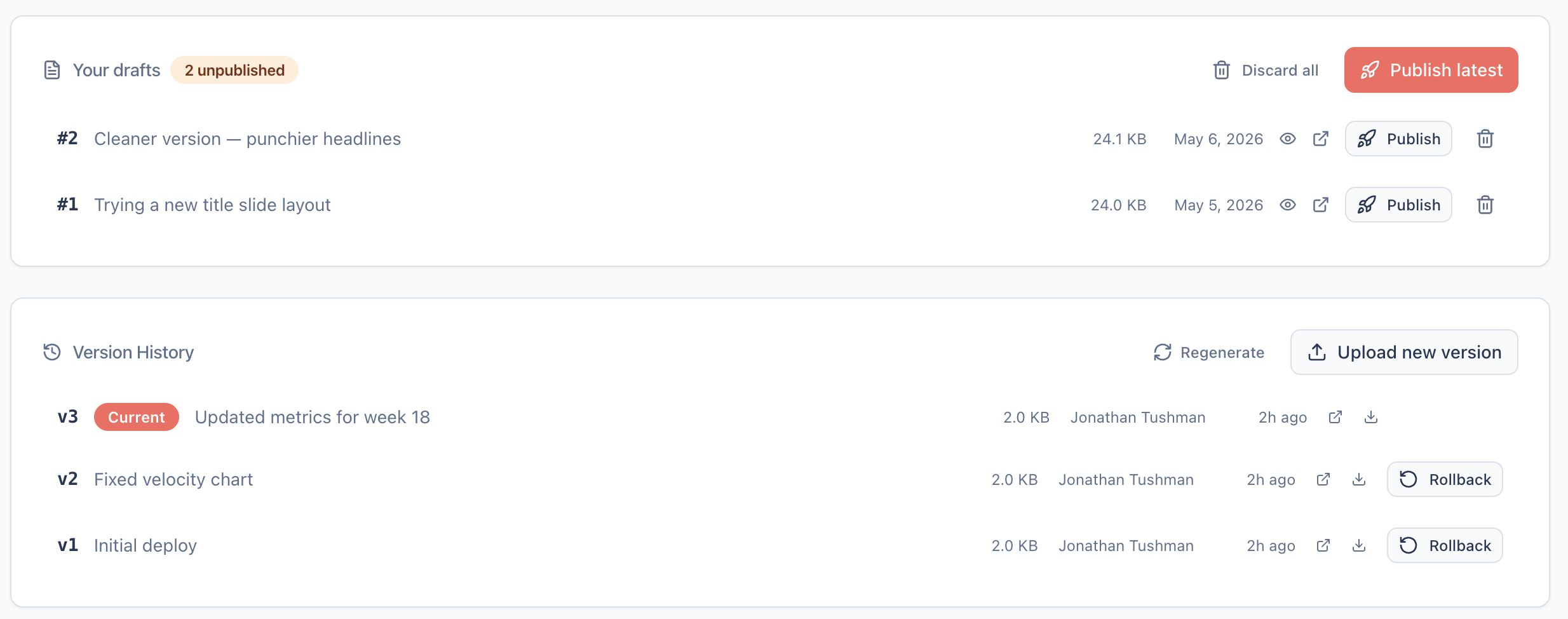
You can now save work-in-progress on a Droplet without anyone else seeing it.
Before this, every deploy was immediately live. If you wanted to iterate on a sprint review you'd already shared in Slack, your only options were: deploy half-finished work and hope no one clicked the link, keep iterating locally and lose the URL, or flip the Droplet to PRIVATE and remember to flip it back. None of those work well.
Now every Droplet you can edit gives you a personal draft workspace. The new --draft flag — available on drop create, drop update, and drop patch — saves your work there instead of publishing. The public URL keeps serving the prior version. When you're ready, drop publish promotes one of your drafts to the new live version in a single atomic step.
And drafts are yours alone. Other editors of the same Droplet cannot see your drafts, cannot search them, cannot accidentally publish them. Drafting is for thinking, not collaboration.
What this means for you
Three new things you can do:
Iterate on a published Droplet without breaking the link. Your sprint review is shared in #engineering. You want to redo the metrics section. Run drop update sprint-review v2.html --draft (or drop patch sprint-review --find ... --replace ... --draft for small text edits). The URL keeps serving the old content while you work. When you're ready, drop publish sprint-review flips it live in one step.
Stage a brand-new Droplet without a live URL until you're confident. drop create briefing.html --slug q3-briefing --name "Q3 Briefing" --draft creates the Droplet in a "never-published" state. The URL serves a Hi Marley-branded "not yet published" placeholder until you publish. No more "oops I shared the URL too early."
Take a Droplet offline cleanly. drop unpublish stale-thing makes the URL serve an "unavailable" placeholder while preserving the version history. drop republish stale-thing restores it. Useful for stale dashboards, killed initiatives, or anything you want to walk back without deleting.
Which command for which step. --draft works the same way on all three of Drop's content commands — pick the one that fits what you're doing:
drop create <file> --slug X --draft— first time touching slug X. Creates the Droplet (in never-published state) with your file as draft #1.drop update <slug> <file> --draft— slug already exists; you're saving another iteration. Adds a new draft to your workspace.drop patch <slug> --find ... --replace ... --draft— small targeted text edits without re-uploading the whole file. Saves the patched output as a draft.
Why we built it this way
We surveyed eleven prior-art tools — Notion, Google Docs, Figma, GitHub, Substack, Confluence, Linear, Coda, Webflow, Framer, Vercel, Netlify — and the design choice came down to a single question:
Should drafts be a shared collaboration surface, or a personal scratch space?
Notion treats them as shared (anyone with workspace access sees your draft as soon as you save). Google Docs has no real draft concept; every edit goes to everyone immediately. Confluence has shared "unpublished changes" that any editor can see and republish. We considered something similar — a shared draft chain layered on top of Drop's existing versioning.
It didn't feel right. Drafting is the time when your work isn't ready for review. If Bob can see Alice's half-finished slide deck, two things happen: Bob feels pressure to react ("should I comment?"), and Alice feels pressure to clean up before saving ("Bob will see this"). Both pressures defeat the point.
So we went with per-editor private workspaces with squash on publish. The model:
- Each editor has their own draft workspace per Droplet. Yours is yours. No one else sees it.
- You can have multiple drafts in your workspace at once, useful for checkpointing ("v2 was actually better than v3").
drop publishpromotes one of your drafts to a new published version. Your other drafts in that workspace are discarded along with the published one. One publish, one new version in history.- Drafts vanish at publish time. The published timeline stays clean.
Conceptually it's similar to GitHub's squash-merge for PRs, but the "branch" is hidden behind the UX. You don't have to think about it.
Quick CLI tour
# Iterate on a published Droplet without affecting viewers — the slug
# already exists, so use `drop update` (with --draft).
drop update sprint-review v2.html --draft
drop update sprint-review v3.html --draft  # checkpoint — drafts coexist

# Or patch text inline without re-uploading
drop patch sprint-review --find "Q1" --replace "Q2" --draft

# See what you've got
drop drafts sprint-review
#   #  CREATED              SIZE     NOTES
#   1  2026-05-06 10:00     24 KB
#   2  2026-05-06 10:30     25 KB

# Decided #1 was actually better
drop publish sprint-review 1
# ✓ Published v8 of sprint-review (squashed 1 other draft)

# Brand-new Droplet, not live yet — use `drop create` because the slug
# doesn't exist yet.
drop create q3-briefing.html --slug q3-briefing --name "Q3 Briefing" --draft
# ✓ Created new draft Droplet q3-briefing (not yet published).

# Take something offline
drop unpublish old-dashboard
drop republish old-dashboard  # bring it back

# Web UI: drafts panel on /apps/{slug} shows your drafts with publish/discard
# actions; a per-user "N drafts" badge appears on dashboard cards.
Technical deep-dive
For the curious — how the privacy invariant and squash semantics actually work.
Per-editor workspaces
Drafts live in two new tables, separate from DropletVersion:
DraftWorkspace— one row per(App, editor), holds zero or more drafts. Created lazily on first--draftdeploy.Draft— one row per uploaded draft. Has a workspace-localshortId(1, 2, 3...) so CLI args likedrop publish my-app 2are typeable.
Drafts are not DropletVersion rows. They have their own S3 prefix ({slug}/_drafts/{draftId}/), which is reserved and excluded from CloudFront's public CDN origin. Draft content does not reach a viewer through any normal request path.
The privacy chokepoint
We had one strict requirement: drafts must be invisible to anyone other than their creator on every observable surface. UI, search, comments, share previews, dashboard, CLI listings, audit log, all of them.
The naive way to enforce this is to add a privacy filter at every read site and hope nobody forgets one. We did the opposite: every read of Draft and DraftWorkspace goes through a single module, lib/drafts.ts. Its functions take the calling user's ID and return null (or empty) when the calling user isn't the workspace owner. There is no "find by appId" method that returns drafts across users — only "find by appId scoped to the calling user."
To make this a build-time invariant rather than a convention, the next iteration will narrow the Prisma client export so prisma.draft and prisma.draftWorkspace become inaccessible from outside lib/drafts.ts. For now it's enforced via a 25-test exhaustive unit suite that probes the chokepoint from both an owner and a non-owner perspective, plus a grep audit confirming zero direct access outside the chokepoint module.
Squash on publish
Publishing is one atomic Prisma transaction:
- Copy the chosen draft's S3 file to a new versioned path (
{slug}/v{N+1}/index.html) - Create a new
DropletVersionrow pointing at it - Re-anchor any draft-anchored comments or pins to the new version
- Delete the published draft AND its sibling drafts in the same workspace
- Update
App.publishedVersionandApp.currentVersion
If anything fails mid-transaction, none of it commits. The draft remains in your workspace ready to retry. Edge sync and CloudFront invalidation fire after the DB commit; if those fail, a subsequent deploy or manual re-sync recovers.
The "discard siblings" step is what we mean by squash. If you had three drafts in your workspace and published draft #2, drafts #1 and #3 are gone. The published timeline never accumulates clutter from rapid iteration. Storage scales with O(active editors × open drafts per editor), not with historical deploy frequency.
Never-published Droplets at the edge
A Droplet that has never been published has App.publishedVersion = null. Lambda@Edge syncs this state from Postgres into DynamoDB via the existing syncAppToEdge path, then serves a Hi Marley-branded 404 placeholder for any request to the slug. Unpublishing reuses the same mechanism: pointer goes to null, edge serves a different placeholder ("unavailable" instead of "not yet published"), CloudFront invalidation fires.
The published URL stays stable. Edits accumulate as drafts. The URL changes only when you explicitly publish. This was a stated design principle from the prior-art research: Notion's auto-sync ("every save updates the public URL") is the canonical anti-pattern for our use case. PMs who paste a Drop URL in Slack should not have it shift under them while they're mid-edit.
Drafts and publishing shipped on the feat/draft-publish branch and tracked at GitHub Issue #296. Feature spec, plan, contracts, and prior-art research at features/draft-publish/.
Find Anything: Fuzzy Search and Smart Operators
Drop's search now tolerates typos, ranks by relevance, and supports power-user operators like from:, #space, and type:. Results appear inline as you type.
What's new
Drop's search got a major upgrade. Three things changed:
Fuzzy matching. Search now tolerates typos. Looking for "compliance" but typed "complance"? You'll still find it. This works across Droplet names, descriptions, and content.
Relevance ranking. Results are ordered by how well they match, not just when they were created. A Droplet named "Q2 Sprint Review" will appear above one that merely mentions "sprint" in its body text.
Operators. Power users can narrow results with structured operators — filter by author, Space, or type — right from the search bar.
How to use it
Just start typing. The search bar lives in the header now and shows results inline as you type, Slack-style. Hit Enter or click "View all results" to see the full paginated results page.
Operators autocomplete as you type:
@jonathan— Droplets deployed by a specific person#engineering— Droplets in a Space#personal— your personal Droplets (not in any Space)type:skill— filter by Droplet type (droplet, drop, skill)
When you select an operator, it becomes a pill in the search bar — a visual token you can remove with a click or backspace. Mix free text with operators: sprint review @jonathan #product finds sprint review Droplets by Jonathan in the Product Space.
From the CLI:
drop search "sprint review @jonathan" --page 2
Why we built it this way
We wanted real search without adding a separate search engine. PostgreSQL's pg_trgm extension gives us fuzzy matching and similarity scoring natively — no Elasticsearch cluster to manage, no sync pipeline to break.
Results are ranked using weighted scoring across fields: name matches count more than body text matches, and an exact slug match jumps to the top. This means the thing you're looking for is almost always the first result.
The operator model is inspired by Slack and GitHub search. Instead of a separate "advanced search" page with dropdowns and filters, operators live inline in the same search bar. Autocomplete makes them discoverable; pills make them visible. Low floor, high ceiling.
We see search and Spaces as complementary — two ways to find things. Spaces are for browsing ("show me everything in Engineering"). Search is for finding ("where's that compliance dashboard Jonathan deployed last week?"). The #space operator bridges both.
What's next
- Tags and auto-tagging — tag Droplets manually or automatically at deploy time, then filter with
tag:compliance - Semantic search — find Droplets by meaning, not just keywords (Phase 2)
- Search analytics — surface trending Droplets and popular queries
Organize Your Droplets with Spaces
Drop now has Spaces — group your Droplets by team, project, or purpose. Set access once at the Space level instead of per-Droplet. Find everything with search.
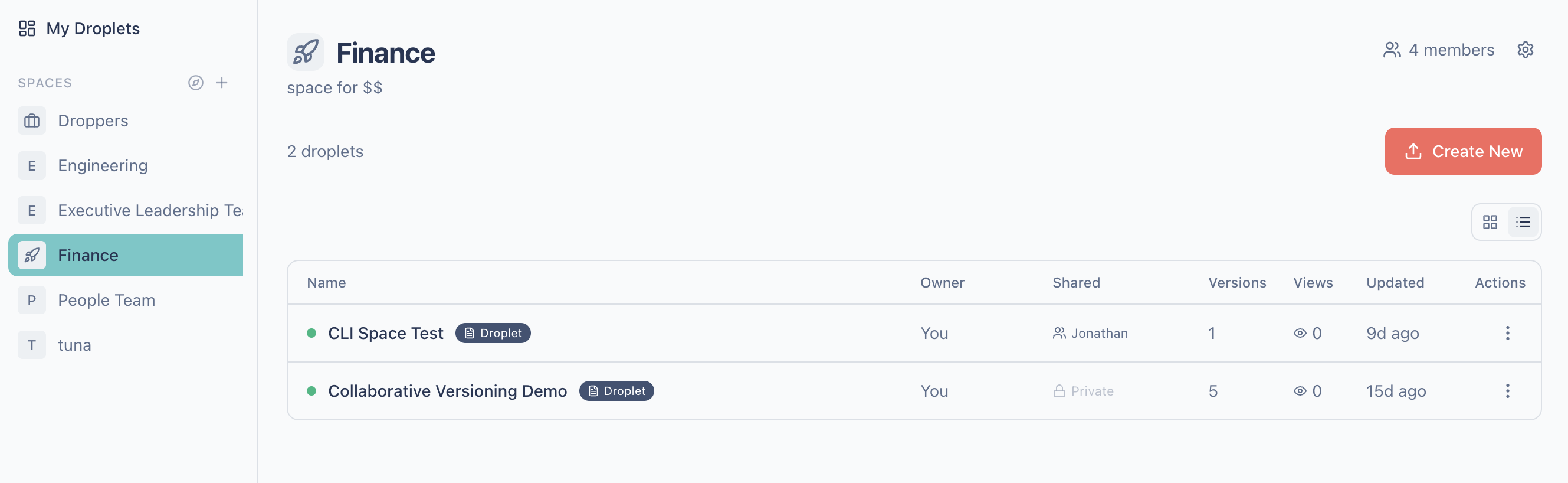
What's new
Drop now has Spaces — a way to group related Droplets together. Think of a Space like a room: it has a name, members, and the Droplets that belong there.
You might create a Space for "Engineering," another for "Product Design," another for "Q2 Planning." Each Space has its own member list and access control, so you set permissions once instead of managing each Droplet individually.
How to use Spaces
In the sidebar, you'll see a new left panel with your Spaces. Click one to enter it — the dashboard scopes to just that Space's Droplets. "My Droplets" at the top works exactly like Drop always has.
To create a Space, click the + next to "Spaces" in the sidebar. Give it a name, choose Open (anyone can join) or Closed (invite-only), and optionally invite members.
To deploy to a Space, select one from the Space dropdown when deploying through the web UI. Or use the CLI:
drop deploy --space engineering index.html
To move an existing Droplet, use the three-dot menu on any Droplet and choose "Move to Space," or find the Space selector on the Droplet's detail page.
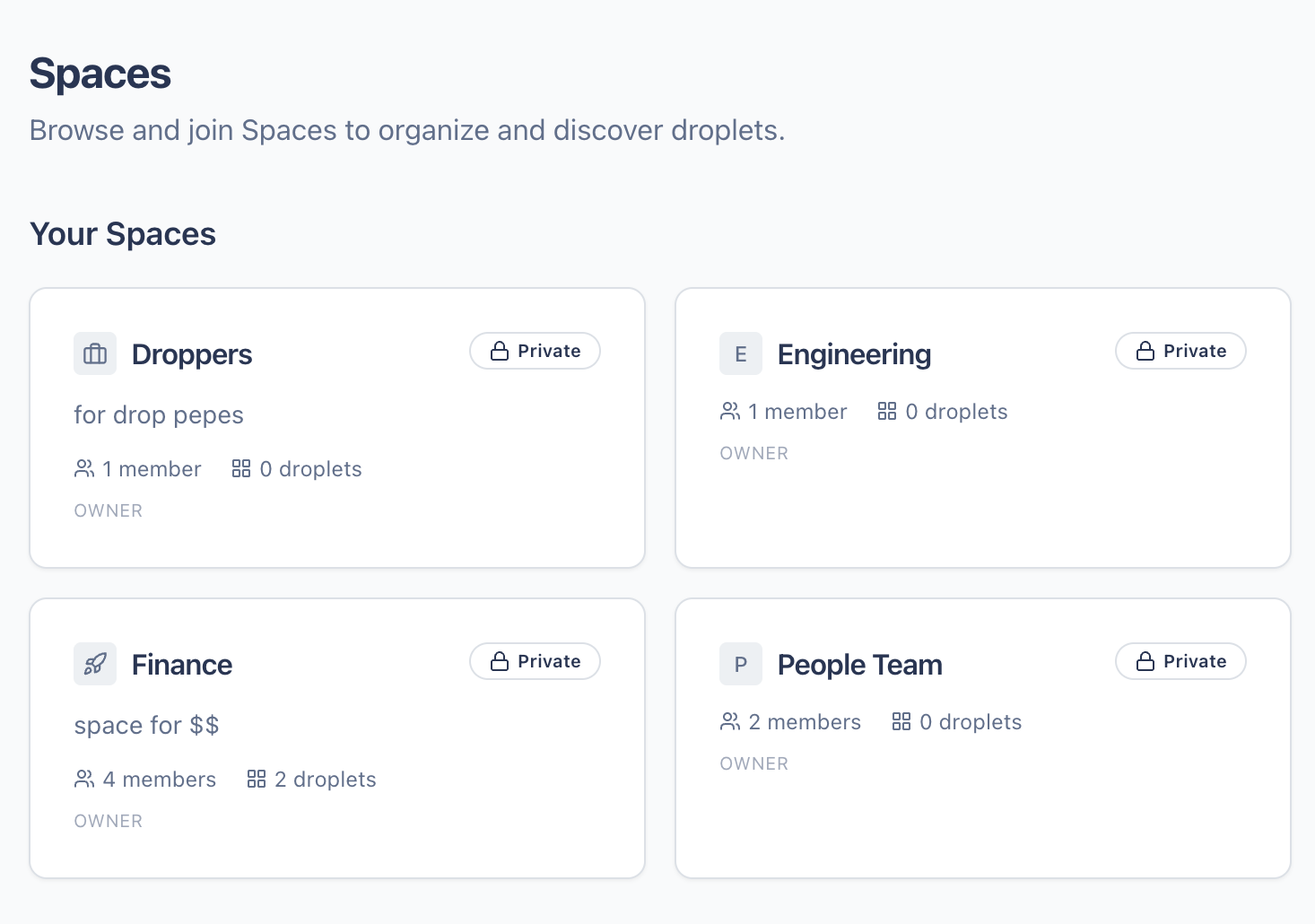
To browse Spaces, click the compass icon next to "Spaces" in the sidebar, or visit /spaces. Open Spaces show a "Join" button.
Access control
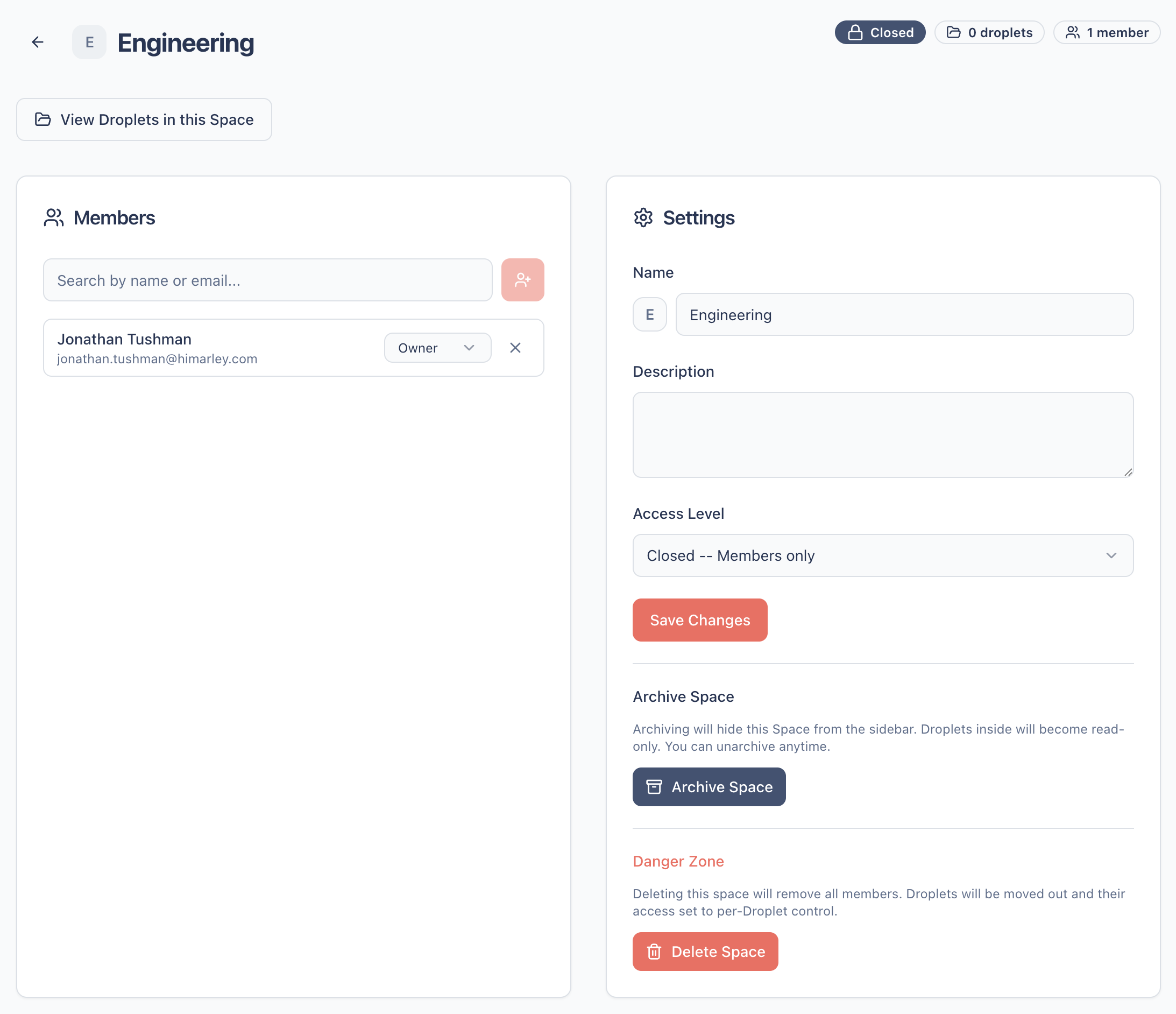
Spaces simplify permissions. Set the access level on the Space (Open or Closed), and Droplets inside inherit it automatically. No more configuring access five times for five related Droplets.
You can still override per-Droplet when needed — if one Droplet in a Closed Space should be visible to everyone, just change that Droplet's access. The rest keep inheriting from the Space.
Space members have roles: Owner (full control), Editor (can manage members and settings), and Member (can view and deploy).
What didn't change
Your existing workflow is untouched. Droplets you've already created stay in "My Droplets" — your personal space. The sidebar starts collapsed. If you never create or join a Space, Drop works exactly like it did before.
Why we built it this way
We deliberately kept Spaces flat — one level, no nesting, no sub-Spaces. Hierarchy creates anxiety ("am I putting this in the right place?"). A flat model with good search removes that. Put a Droplet where it feels right, and search handles the rest.
We called them "Spaces" (not "Buckets" or "Folders") because the word captures what we're building toward: not just a container for documents, but a room where people and agents work together.
What's next
- Slack channel binding — connect a Space to a Slack channel for deploy notifications
- Tags + search improvements — cross-Space discovery
- Space activity feeds — see everything happening at a glance
Now You Can Collaborate on Droplets Without Stepping on Each Other
Multiple people and agents can now edit the same Droplet concurrently. Drop detects conflicts and auto-merges non-overlapping changes — so your board memo, sprint review, or team dashboard stays safe even when five agents are updating it at once.
What's new
You and your teammates — human or AI — can now work on the same Droplet at the same time without accidentally overwriting each other's work.
Before this, Drop used a simple "last save wins" model. If you asked Claude to update the metrics table in your sprint review while a colleague asked their agent to update the executive summary, whoever saved last would silently erase the other's changes. No warning, no error. You'd only notice when the metrics you just updated were gone.
Now Drop handles this for you. When two edits happen concurrently:
- If the changes are in different sections of the page (one agent updates the header, another updates the footer) — Drop merges them automatically. Both changes land. No one loses work.
- If the changes overlap (both agents edited the same paragraph) — Drop stops and tells you instead of silently overwriting. You see exactly which section conflicted and can decide what to keep.
What this means for you
Shared documents are safe now. That board memo three people are refining? The team dashboard that gets refreshed by an agent every morning? The sprint review that the PM, the tech lead, and their agents are all polishing at the same time? They all just work.
Here are a few things you can do now that you couldn't before:
- Ask multiple agents to update the same Droplet simultaneously. "Update the Q2 numbers" and "add the new team member to the org chart" can run in parallel without coordination.
- Collaborate on a document in real-time across Claude Code sessions. Two people working on different sections of the same page won't step on each other.
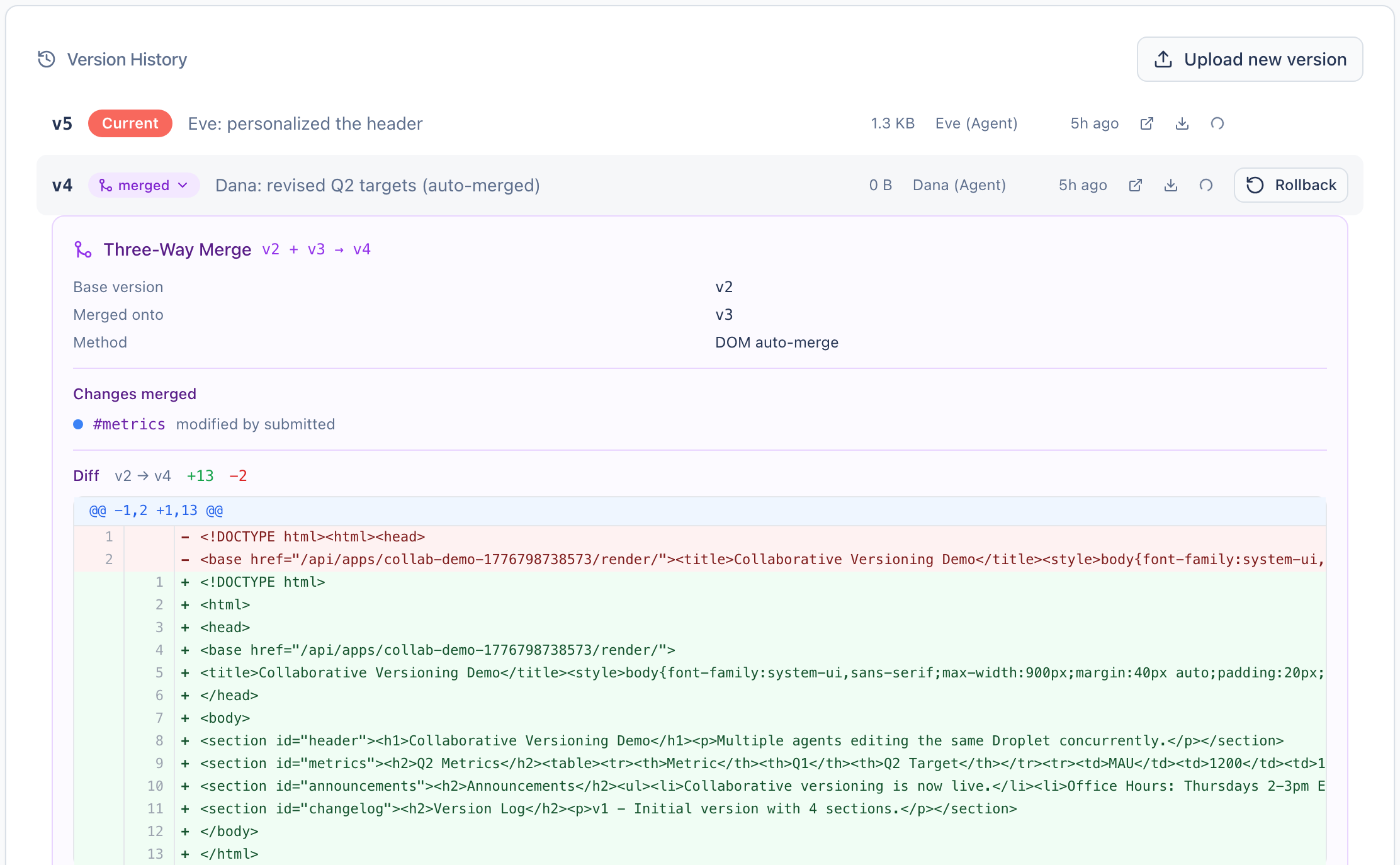
- See exactly what happened when changes were merged. The version history shows a purple "merged" badge you can expand to see the full diff — which sections each person changed, and how they were combined.
You don't need to change how you work. The CLI, MCP, and web UI all handle this transparently. If you're deploying through Claude Code, your agent already sends the right information.
Why we built it this way
When we think about building Drop, we're building for agents first. Not "how do we give humans multiple cursors in a shared editor" — that's Google Docs' problem. Our question was: what happens when agents want to collaborate?
Agents work differently than humans. They don't sit in a shared editor watching each other's cursors. They fetch a document, transform it, and deploy the result. The collision window is the gap between fetch and deploy — seconds to minutes, not hours. And unlike humans, agents are great at retrying when something goes wrong.
So instead of building real-time collaboration infrastructure (WebSockets, CRDTs, presence indicators), we built something that fits how agents actually work: detect conflicts at deploy time, and merge automatically when possible.
The result is three layers that stack on each other:
-
Conflict detection — When you deploy, you tell Drop which version you started from. If someone else deployed in between, Drop catches it instead of silently overwriting.
-
Auto-merge — Drop reads both versions, compares them at the structural level (which sections changed?), and merges non-overlapping changes automatically. This handles the vast majority of concurrent edits.
-
Conflict reporting — When changes genuinely overlap, Drop tells you exactly which section conflicted so you can resolve it intentionally rather than losing work silently.
The version history experience
When Drop auto-merges two edits, the version history shows it clearly. You'll see a purple merged badge on the version — click it to expand the full story:
The detail panel shows which version each person started from, what got merged, and a GitHub-style diff of the actual line-by-line changes. It's there for the curious — but you never need to look at it for things to work.
Technical deep-dive
For the curious — here's how the merge actually works under the hood.
How conflict detection works
Every deploy now includes a baseVersion — the version number you started editing from. The server compares this to the current version:
POST /api/cli/deploy
{ "slug": "my-dashboard", "baseVersion": 5, ... }
If baseVersion matches the current version, the deploy goes through normally. If someone else deployed v6 while you were working from v5, the server catches the mismatch.
How auto-merge works
When a conflict is detected and the client includes the HTML content, the server performs a three-way merge:
- Reads the base version (what you started from) from S3
- Reads the current version (what's live now) from S3
- Parses all three HTML documents into DOM trees
- Matches elements by
idattribute or positional tag index - Merges non-overlapping changes; reports conflicts for overlapping ones
We chose DOM-level merging over line-based text diff because HTML is structured. Two agents editing adjacent lines in the same file would look like a conflict to git merge, but if they're in different <section> elements, the changes are completely independent. DOM-level matching gets this right.
What we didn't build (and why)
- CRDTs / Operational Transform (the Google Docs approach) — requires a collaboration server, WebSockets, and a complete rethinking of the editing model. Massive complexity for a use case where agents don't need real-time awareness of each other.
- Pessimistic locking — if an agent crashes while holding a lock, everyone else is blocked until it times out. Bad UX for a platform that should feel lightweight.
- Full git branching per Droplet — too much complexity for single-file HTML documents. Git exists for that.
What's next
- AI conflict resolution — when auto-merge can't resolve overlapping changes, Claude will attempt an intelligent merge with full audit trail
- Drafts — work-in-progress versions that don't go live until you promote them
- Editing awareness — subtle indicators when someone else is currently working on the same Droplet
Collaborative versioning shipped in PR #250. Feature spec at features/012-collaborative-versioning/spec.md.